SSL Certificates
Certificate Management in nBalance provide tools for managing SSL certificates. This includes the ability to upload, renew, or replace certificates. Our nBalance also support automated certificate renewal through integration with certificate authorities.
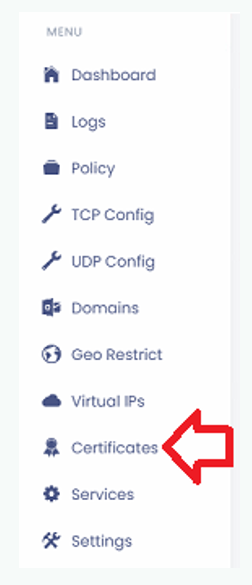
1. Navigate to Certificates page. Click Certificates, It will navigate to the Certificates page.
Upload SSL Certificate
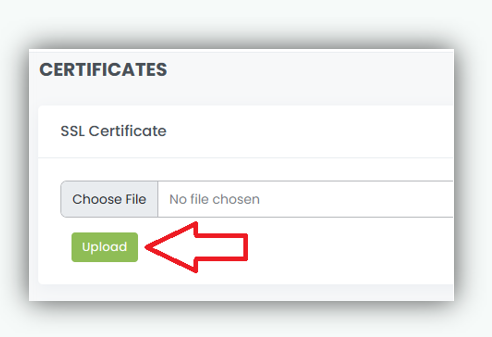
- In the SSL Certificate section, click Choose File to open the file selection dialog.
- Browse and select the SSL certificate file from the local system.
- Click Upload to upload the certificate to the ADC.
Upload Server Certificate (CA / Intermediate / Root)
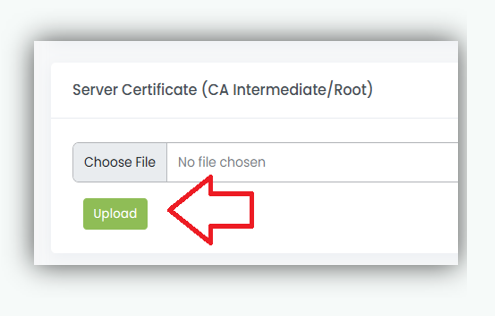
- In the Server Certificate (CA / Intermediate / Root) section, click Choose File to open the file selection dialog.
- Browse and select the SSL certificate file from the local system.
- Click Upload to upload the certificate to the ADC.
Uploaded Certificates
This section displays all SSL certificates that have been uploaded to the system.
Certificate List
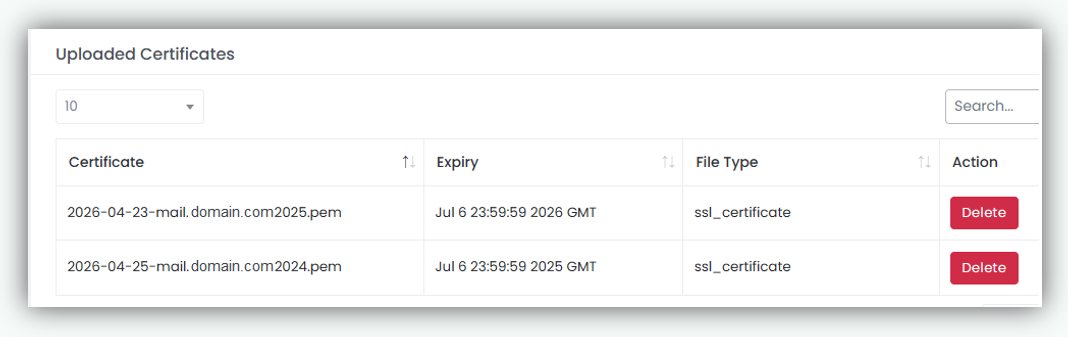
The table provides details of each uploaded certificate:
- Certificate Displays the name of the uploaded certificate file.
- Expiry Shows the expiration date of the certificate. If not available, it is displayed as None.
- File Type Indicates the type of certificate:
- SSL certificate – Primary SSL certificate
- server certificate – CA intermediate or root certificate
- Action
- Delete: Removes the selected certificate from the ADC.
Search and Filter
- Use the search bar to quickly find certificates by name.
- The dropdown allows you to control the number of entries displayed.
Note: Uploaded certificates are automatically prefixed with the date of upload to help identify and manage certificate versions easily.